




Players
28 wallpapers in this category
-
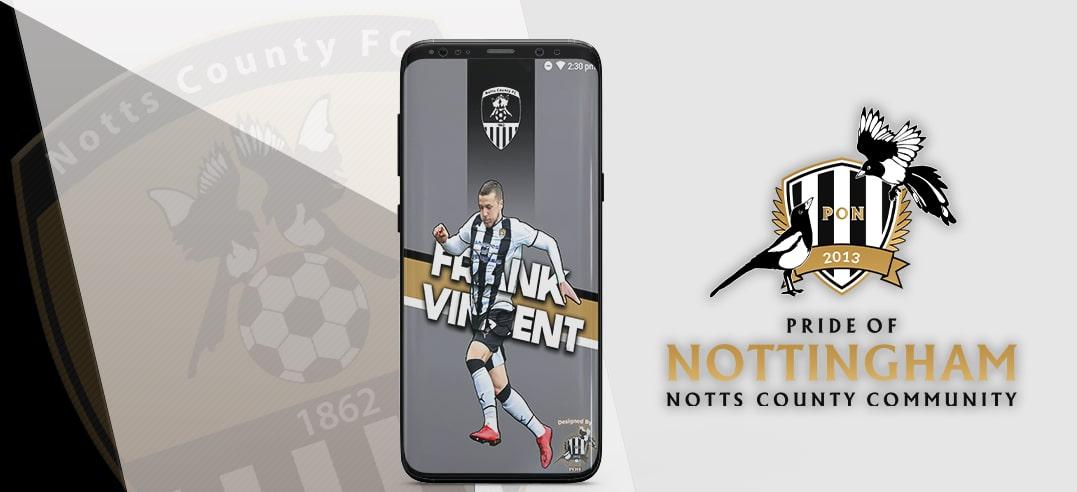
To download wallpaper image, simply click on the “Download” button, then choose in which drive to save it, and select “Save”. To then change your background to the wallpaper image, locate it in the drive where you saved it, select “Use as Background”, and choose “Fit” as the wallpaper’s picture position. If you would like to request the top image to be customised for you, to include a picture of your own please email We hope you enjoy this wallpaper. A lot of time and ef
-
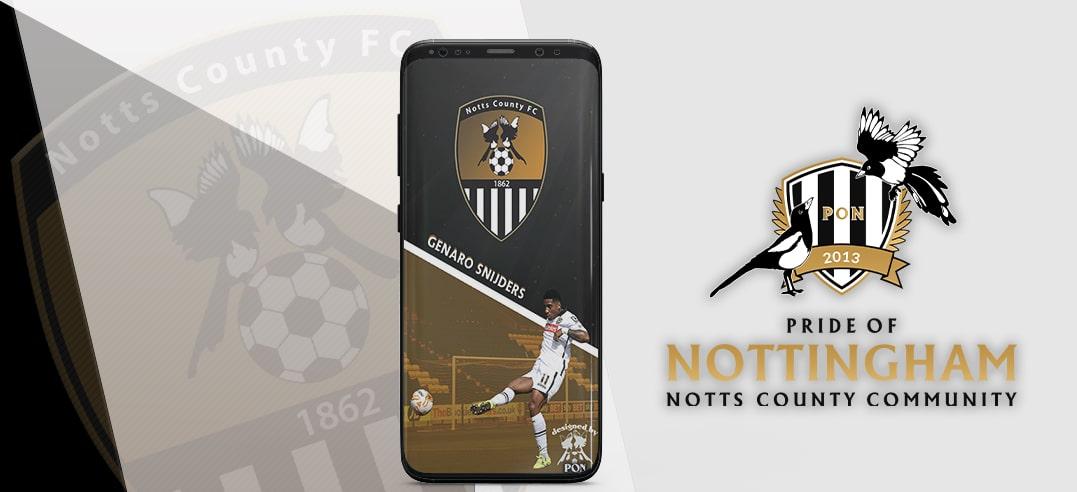
To download this wallpaper image, simply click on the “Download” button, then choose in which drive to save it, and select “Save”. To then change your background to the wallpaper image, locate it in the drive where you saved it, select “Use as Background”, and choose “Fit” as the wallpaper’s picture position. We hope you enjoy this wallpaper. A lot of time and effort goes into creating them for your enjoyment, so please consider donating to Pride of Nottingham to help keep the site goi
-
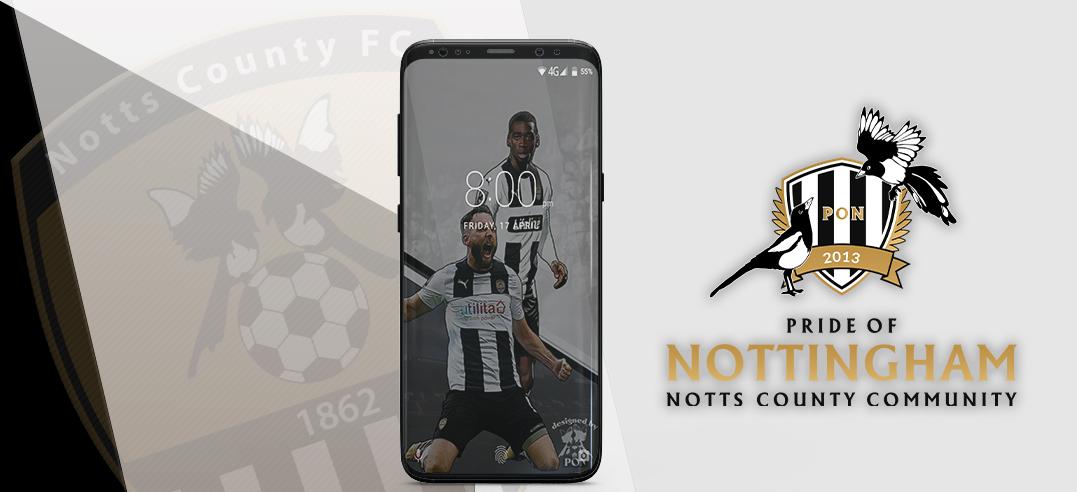
To download wallpaper image, simply click on the “Download” button, then choose in which drive to save it, and select “Save”. To then change your background to the wallpaper image, locate it in the drive where you saved it, select “Use as Background”, and choose “Fit” as the wallpaper’s picture position. If you would like to request the top image to be customised for you, to include a picture of your own please email We hope you enjoy this wallpaper. A lot of time and ef
-
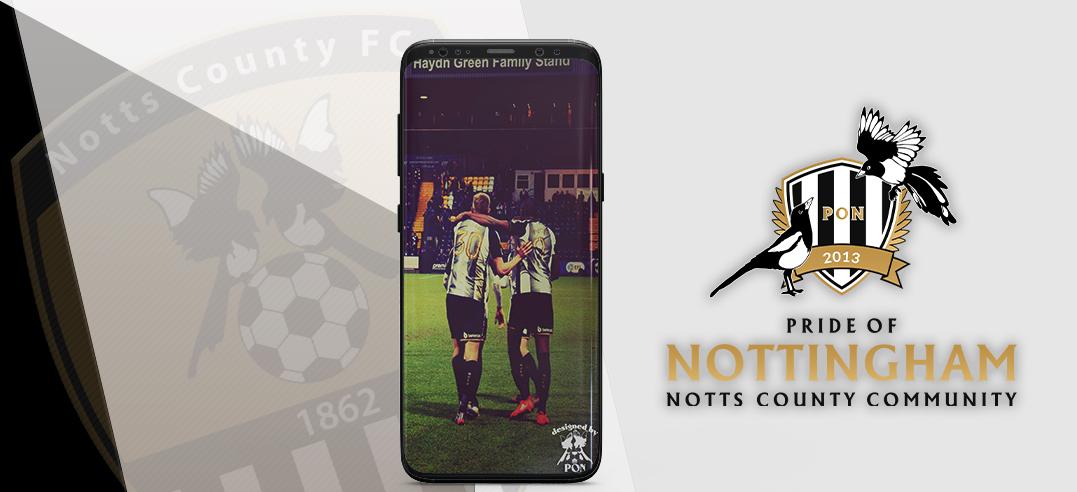
To download wallpaper image, simply click on the “Download” button, then choose in which drive to save it, and select “Save”. To then change your background to the wallpaper image, locate it in the drive where you saved it, select “Use as Background”, and choose “Fit” as the wallpaper’s picture position. If you would like to request the top image to be customised for you, to include a picture of your own please email We hope you enjoy this wallpaper. A lot of time and ef
-
To download wallpaper image, simply click on the “Download” button, then choose in which drive to save it, and select “Save”. To then change your background to the wallpaper image, locate it in the drive where you saved it, select “Use as Background”, and choose “Fit” as the wallpaper’s picture position. If you would like to request the top image to be customised for you, to include a picture of your own please email We hope you enjoy this wallpaper. A lot of time and ef
-
To download wallpaper image, simply click on the “Download” button, then choose in which drive to save it, and select “Save”. To then change your background to the wallpaper image, locate it in the drive where you saved it, select “Use as Background”, and choose “Fit” as the wallpaper’s picture position. If you would like to request the top image to be customised for you, to include a picture of your own please email We hope you enjoy this wallpaper. A lot of time and ef
-
To download wallpaper image, simply click on the “Download” button, then choose in which drive to save it, and select “Save”. To then change your background to the wallpaper image, locate it in the drive where you saved it, select “Use as Background”, and choose “Fit” as the wallpaper’s picture position. If you would like to request the top image to be customised for you, to include a picture of your own please email We hope you enjoy this wallpaper. A lot of time and ef
-
To download wallpaper image, simply click on the “Download” button, then choose in which drive to save it, and select “Save”. To then change your background to the wallpaper image, locate it in the drive where you saved it, select “Use as Background”, and choose “Fit” as the wallpaper’s picture position. If you would like to request the top image to be customised for you, to include a picture of your own please email We hope you enjoy this wallpaper. A lot of time and ef
-
To download wallpaper image, simply click on the “Download” button, then choose in which drive to save it, and select “Save”. To then change your background to the wallpaper image, locate it in the drive where you saved it, select “Use as Background”, and choose “Fit” as the wallpaper’s picture position. If you would like to request the top image to be customised for you, to include a picture of your own please email We hope you enjoy this wallpaper. A lot of time and ef
-
To download wallpaper image, simply click on the “Download” button, then choose in which drive to save it, and select “Save”. To then change your background to the wallpaper image, locate it in the drive where you saved it, select “Use as Background”, and choose “Fit” as the wallpaper’s picture position. If you would like to request the top image to be customised for you, to include a picture of your own please email We hope you enjoy this wallpaper. A lot of time and ef
-
To use this wallpaper simply download the image to a safe location - preferably where your systems wallpapers are stored, select to personalise your display/monitor, then locate the image, select to use it and choose 'fit' as the wallpapers picture position. A lot of time and effort goes into creating the wallpapers and providing the Pride of Nottingham website. Please consider donating - Here Credits to @Chris who designed the wallpaper - thanks to @Dan for image of the player.
-
To download wallpaper image, simply click on the “Download” button, then choose in which drive to save it, and select “Save”. To then change your background to the wallpaper image, locate it in the drive where you saved it, select “Use as Background”, and choose “Fit” as the wallpaper’s picture position. If you would like to request the top image to be customised for you, to include a picture of your own please email We hope you enjoy this wallpaper. A lot of time and ef
-
To download wallpaper image, simply click on the “Download” button, then choose in which drive to save it, and select “Save”. To then change your background to the wallpaper image, locate it in the drive where you saved it, select “Use as Background”, and choose “Fit” as the wallpaper’s picture position. If you would like to request the top image to be customised for you, to include a picture of your own please email We hope you enjoy this wallpaper. A lot of time and ef
-
To download wallpaper image, simply click on the “Download” button, then choose in which drive to save it, and select “Save”. To then change your background to the wallpaper image, locate it in the drive where you saved it, select “Use as Background”, and choose “Fit” as the wallpaper’s picture position. If you would like to request the top image to be customised for you, to include a picture of your own please email We hope you enjoy this wallpaper. A lot of time and ef
-
To download wallpaper image, simply click on the “Download” button, then choose in which drive to save it, and select “Save”. To then change your background to the wallpaper image, locate it in the drive where you saved it, select “Use as Background”, and choose “Fit” as the wallpaper’s picture position. If you would like to request the top image to be customised for you, to include a picture of your own please email We hope you enjoy this wallpaper. A lot of time and ef
-
To download this wallpaper image, simply click on the “Download” button, then choose in which drive to save it, and select “Save”. To then change your background to the wallpaper image, locate it in the drive where you saved it, select “Use as Background”, and choose “Fit” as the wallpaper’s picture position. We hope you enjoy this wallpaper. A lot of time and effort goes into creating them for your enjoyment, so please consider donating to Pride of Nottingham to help keep the site goi
-
To download wallpaper image, simply click on the “Download” button, then choose in which drive to save it, and select “Save”. To then change your background to the wallpaper image, locate it in the drive where you saved it, select “Use as Background”, and choose “Fit” as the wallpaper’s picture position. If you would like to request the top image to be customised for you, to include a picture of your own please email We hope you enjoy this wallpaper. A lot of time and ef
-
To download wallpaper image, simply click on the “Download” button, then choose in which drive to save it, and select “Save”. To then change your background to the wallpaper image, locate it in the drive where you saved it, select “Use as Background”, and choose “Fit” as the wallpaper’s picture position. If you would like to request the top image to be customised for you, to include a picture of your own please email We hope you enjoy this wallpaper. A lot of time and ef
-
To download wallpaper image, simply click on the “Download” button, then choose in which drive to save it, and select “Save”. To then change your background to the wallpaper image, locate it in the drive where you saved it, select “Use as Background”, and choose “Fit” as the wallpaper’s picture position. If you would like to request the top image to be customised for you, to include a picture of your own please email We hope you enjoy this wallpaper. A lot of time and ef
-
To download wallpaper image, simply click on the “Download” button, then choose in which drive to save it, and select “Save”. To then change your background to the wallpaper image, locate it in the drive where you saved it, select “Use as Background”, and choose “Fit” as the wallpaper’s picture position. If you would like to request the top image to be customised for you, to include a picture of your own please email We hope you enjoy this wallpaper. A lot of time and ef
-
To download this wallpaper image, simply click on the “Download” button, then choose in which drive to save it, and select “Save”. To then change your background to the wallpaper image, locate it in the drive where you saved it, select “Use as Background”, and choose “Fit” as the wallpaper’s picture position. We hope you enjoy this wallpaper. A lot of time and effort goes into creating them for your enjoyment, so please consider donating to Pride of Nottingham to help keep the site goi
-
To download wallpaper image, simply click on the “Download” button, then choose in which drive to save it, and select “Save”. To then change your background to the wallpaper image, locate it in the drive where you saved it, select “Use as Background”, and choose “Fit” as the wallpaper’s picture position. If you would like to request the top image to be customised for you, to include a picture of your own please email We hope you enjoy this wallpaper. A lot of time and ef
-
To download wallpaper image, simply click on the “Download” button, then choose in which drive to save it, and select “Save”. To then change your background to the wallpaper image, locate it in the drive where you saved it, select “Use as Background”, and choose “Fit” as the wallpaper’s picture position. If you would like to request the top image to be customised for you, to include a picture of your own please email We hope you enjoy this wallpaper. A lot of time and ef
-
To download wallpaper image, simply click on the “Download” button, then choose in which drive to save it, and select “Save”. To then change your background to the wallpaper image, locate it in the drive where you saved it, select “Use as Background”, and choose “Fit” as the wallpaper’s picture position. If you would like to request the top image to be customised for you, to include a picture of your own please email We hope you enjoy this wallpaper. A lot of time and ef
-
To use this wallpaper simply download the image to a safe location - preferably where your systems wallpapers are stored, select to personalise your display/monitor, then locate the image, select to use it and choose 'fit' as the wallpaers picture position. A lot of time and effort goes into creating the wallpapers and providing the Pride of Nottingham website. Please consider donating - Here Credit to @Chriswho designed the wallpaper - thanks to @Dan for the images.


.jpg.9cba9362c83e35d2e2820a207287a51d.jpg)
.jpg.4e53f1f9bf3aa4879d7ba0e1e364c7b8.jpg)
.jpg.1c926f80b99f87864e2e62cf24d6d963.jpg)




.jpg.5f8afb21450866e71fb8ea1c591dcf43.jpg)